Your vault for QR codes & more.

Every code.
One vault.
PureCards.

Your QR codes, barcodes and cards, tucked away on your iPhone – and on your wrist. Always at hand when you need them.
Coming soon to the App Store Explore features
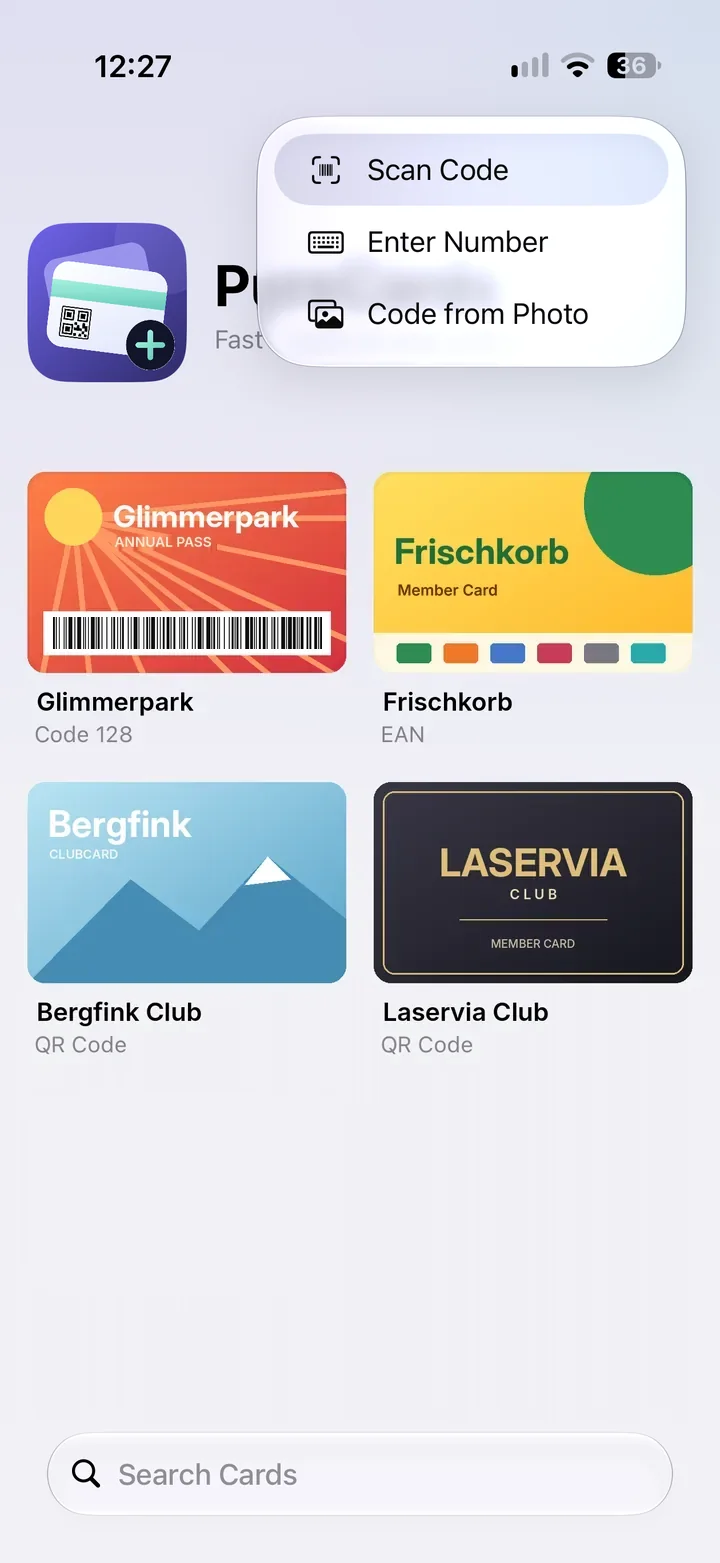
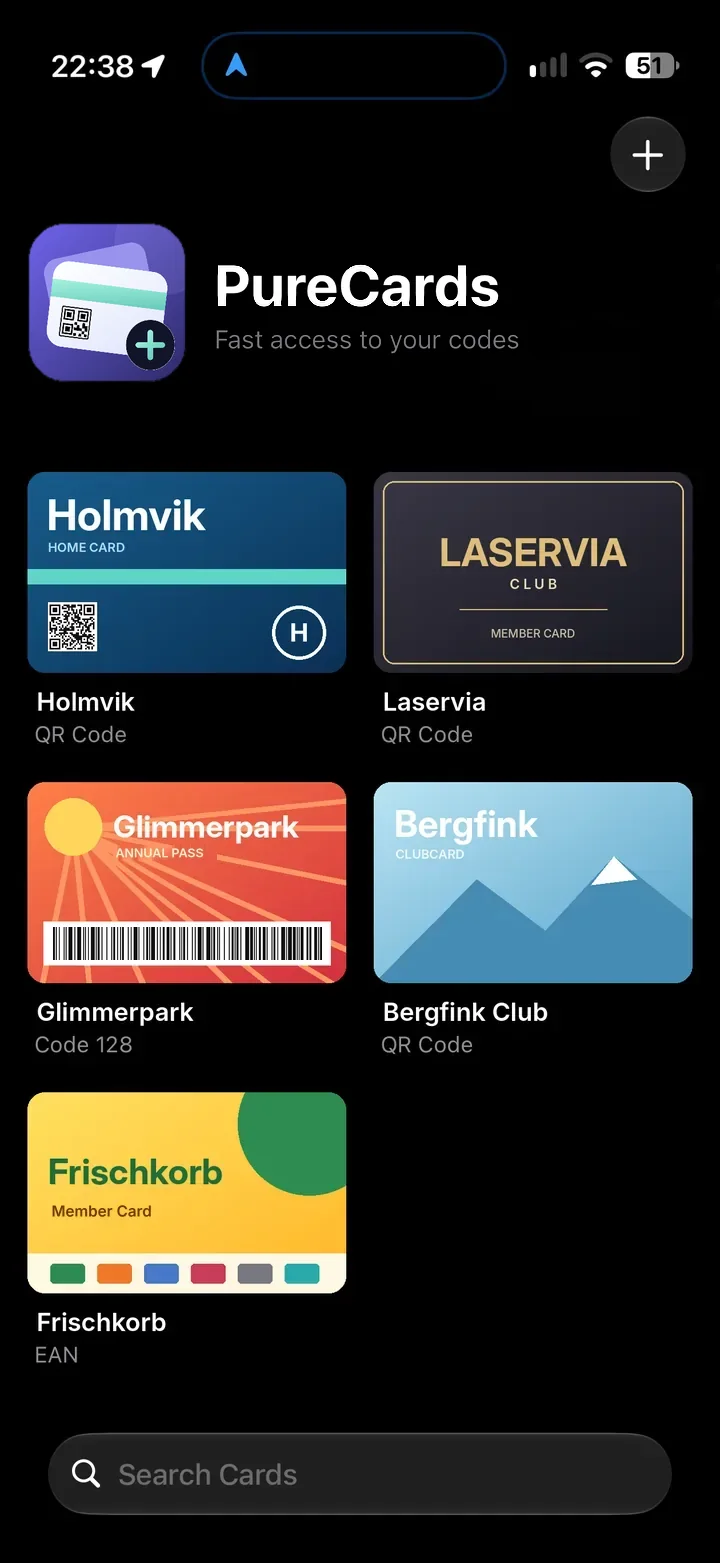
PureCards on iPhone: overview with several sample cards, their code types and a search field
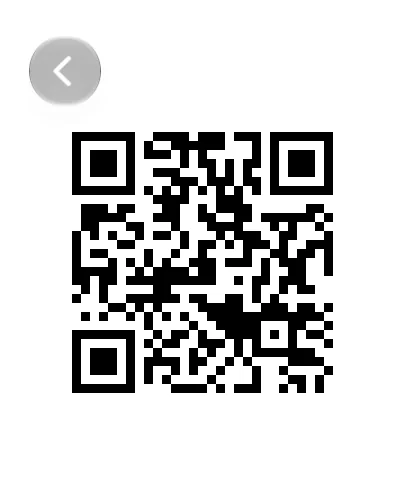
PureCards on Apple Watch: a card’s QR code in full screen

Less plastic in your wallet.
More order on your iPhone.

  • All in one place

    All your codes and cards in one app instead of scattered across your wallet, emails and screenshots.

  • Found in a flash

    One tap on the card – and the code is ready. Lots of cards? Just search.

  • On your wrist, too

    With the Apple Watch app, your iPhone stays in your pocket.

Features

Thought through,
right to the scanner.

Add codes your way.

Three ways to a new card – right from the “+” in the overview.

  • Scan Code
  • Enter Number
  • Code from Photo
Menu for adding a card in PureCards

The codes that matter.

PureCards displays these code types:

  • QR Code
  • Code 128
  • EAN

Card image if you like.

Show a picture of your real card below the code – or hide it.

Light or dark.

PureCards follows your iPhone’s appearance.

How it works

From plastic card
to code at a glance.

  1. 01Add

    Three ways to add a card.

    Scan the code with the camera, type in the number or take the code from a photo. Done.

    PureCards in dark mode: open menu with “Scan Code”, “Enter Number” and “Code from Photo”
  2. 02Overview

    Everything at a glance.

    Every card with its image, name and code type – neatly laid out in a grid. And when there are more of them: just search.
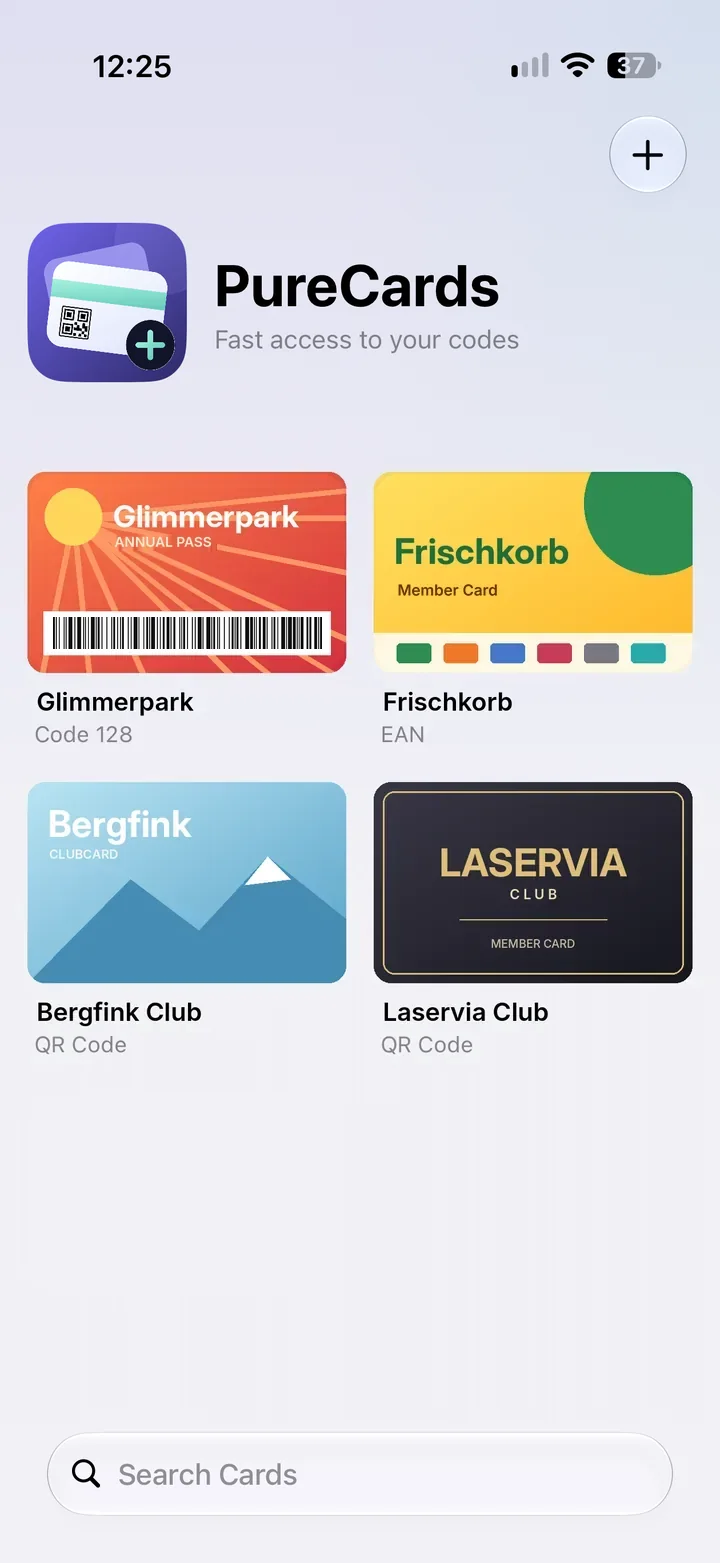
    PureCards card overview in light mode with four cards and a search field
  3. 03Show it

    Big. Clear. Scannable.

    The code appears large on a white background, with the number clearly legible below – in case it ever has to be typed in by hand.
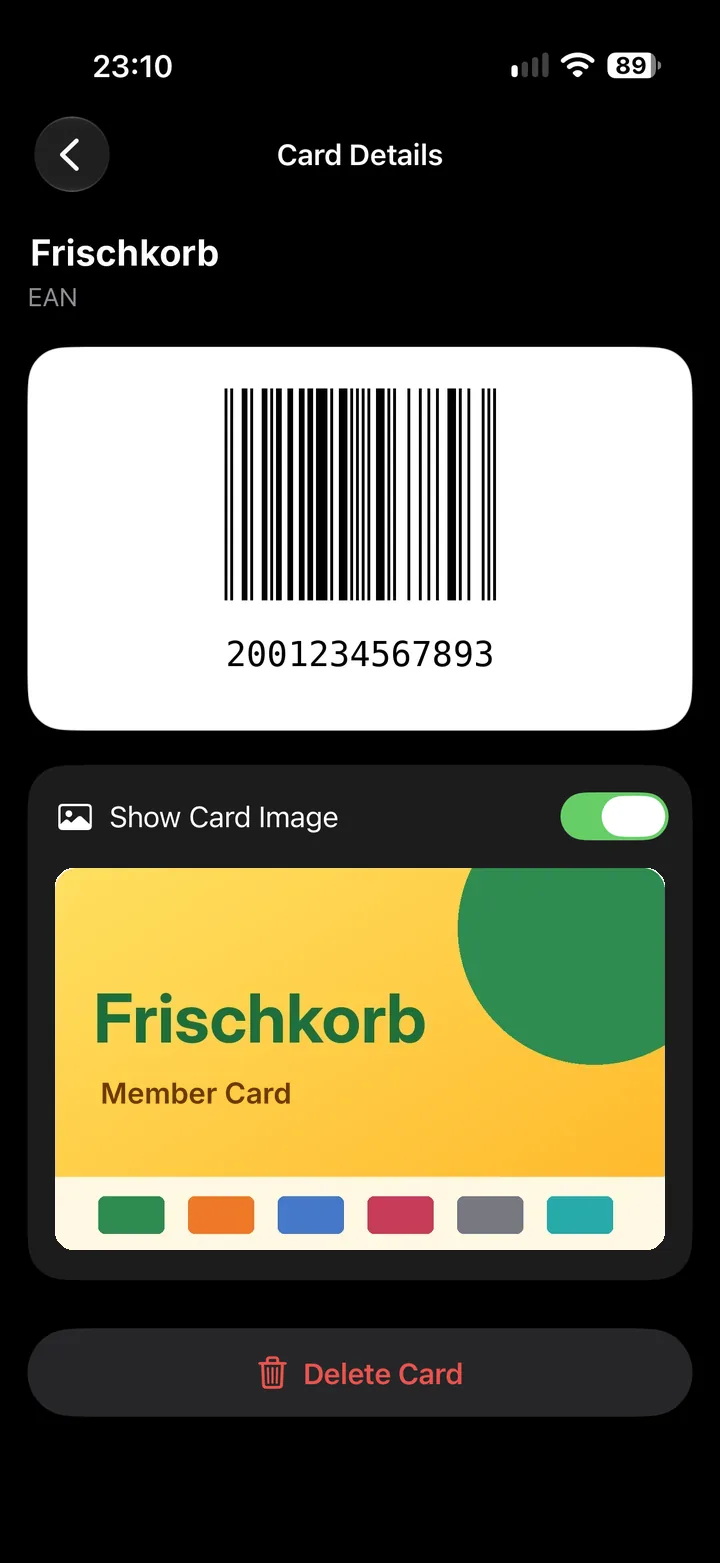
    PureCards card details with a large EAN barcode, card number and card image
  4. 04Card image

    Your card, the way you know it.

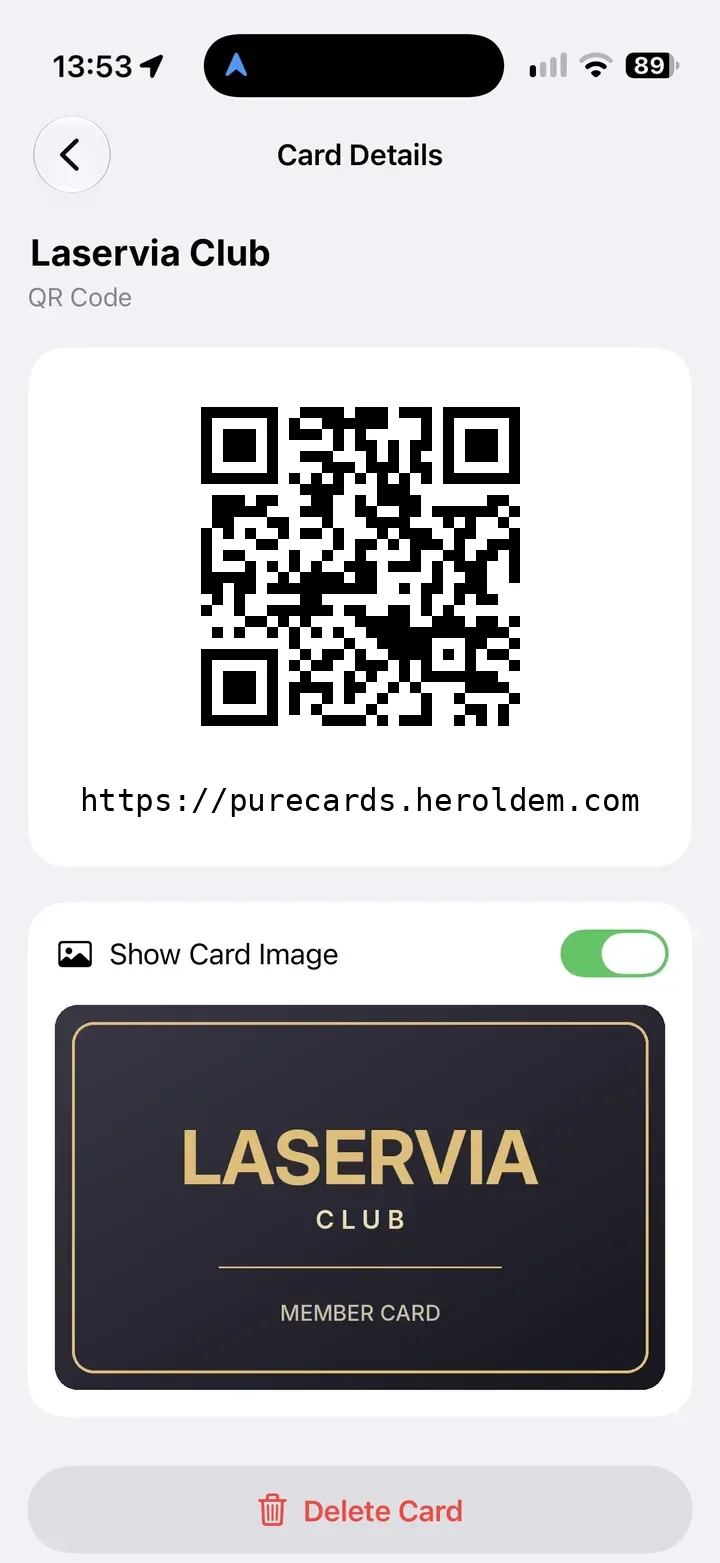
    Use “Show Card Image” to display the picture of your card below the code – or leave it out.
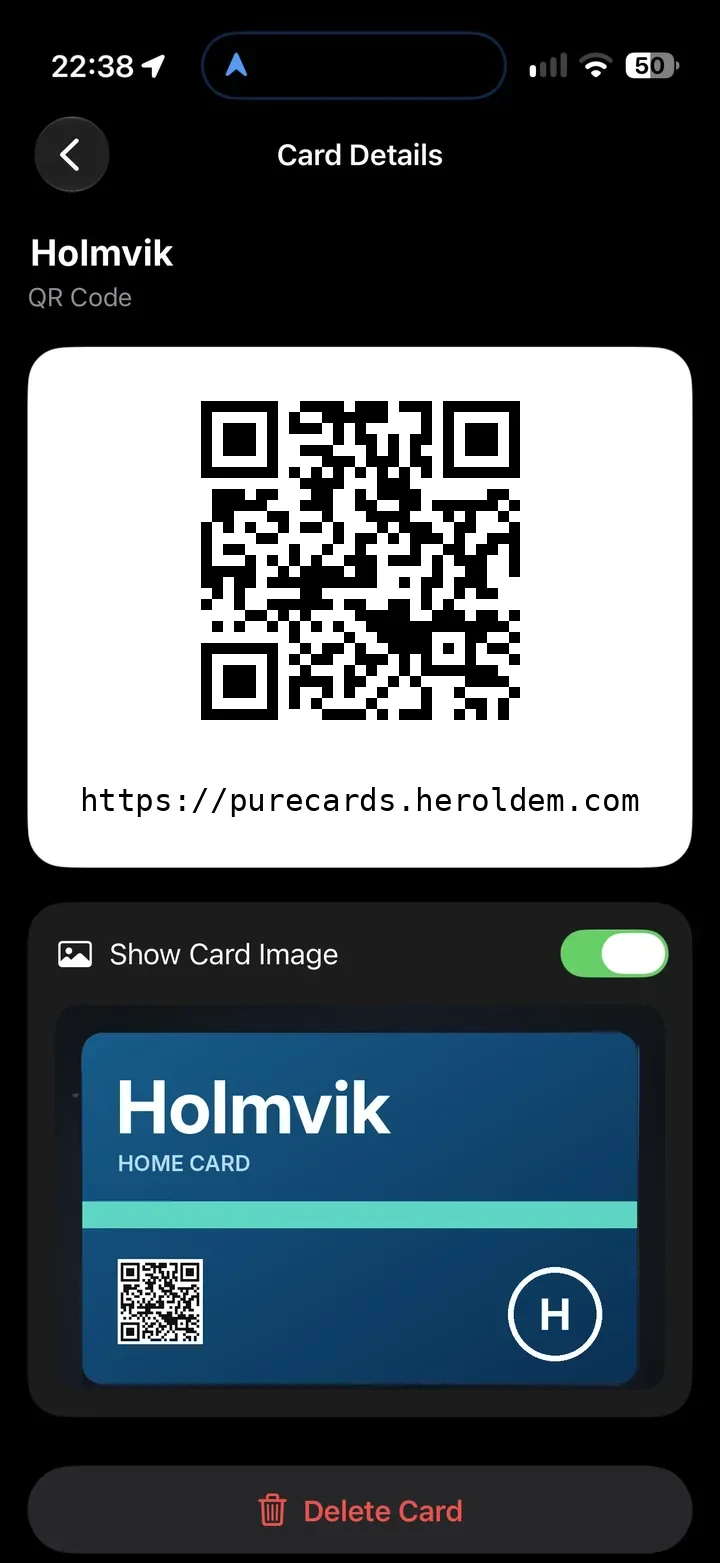
    PureCards card details in dark mode with a QR code and card image

Apple Watch

Your codes
on your wrist.

Your card list comes along on Apple Watch. Tap a card, show the code – your iPhone stays in your pocket.

  • Full-screen code

    Large on a white background, right on your watch display.

  • As a complication

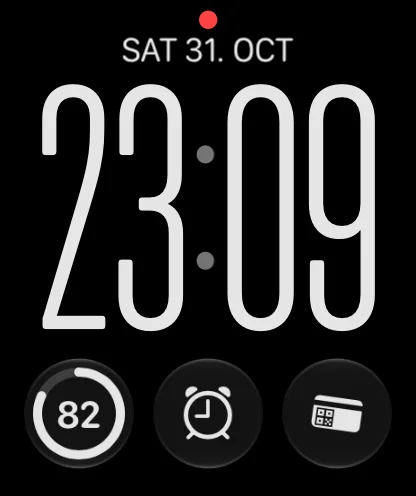
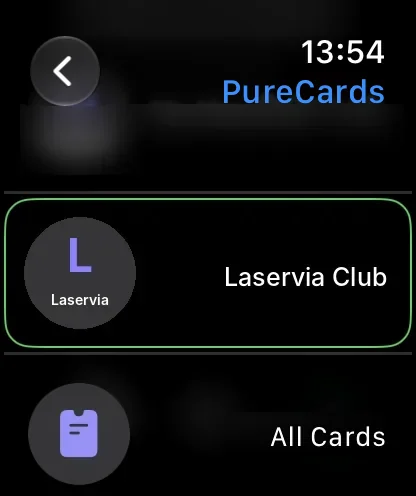
    Put a specific card or “All Cards” on your watch face.
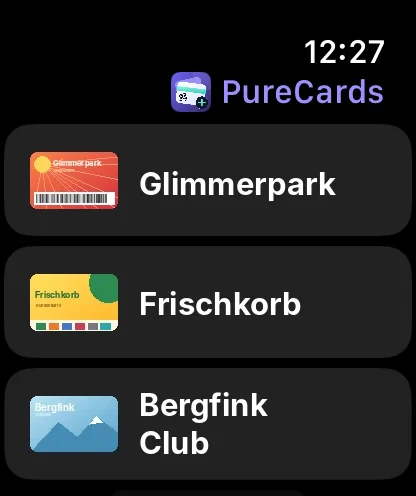
PureCards on Apple Watch: list with the sample cards Glimmerpark, Frischkorb and Bergfink Club
A card’s QR code on Apple Watch
Apple Watch face with a PureCards complication
Choosing the PureCards complication: Laservia Club or All Cards

Transparency
comes standard.

Your codes are personal. That’s why we explain openly which data is processed – in the app and on this website.

Where your codes are stored
Locally on your iPhone. Your cards are stored only within the app on your device – not on servers and not in iCloud.
Syncing
Only between your iPhone and your paired Apple Watch. The app transfers your cards directly over Apple’s connection between iPhone and Watch (WatchConnectivity) – without our own servers and without any cloud. Name, code and a small preview image are sent to the Watch; photos of your cards stay on your iPhone.
Camera & photos
The camera is used only when you scan a code or take a photo of your card. A card photo is stored only within the app on your iPhone, not in your photo library. If you pick a picture from your library, the app receives only that one picture; with “Code from Photo” it is analyzed on your device and not stored.
Sharing with third parties
No. The app does not send any data to external services or to us.
Analytics & tracking
No. PureCards contains no analytics, tracking or advertising services.
User account
No. PureCards works without a user account and without signing in.

This website

  • sets no cookies of its own
  • uses no tracking and no analytics tools
  • loads no third-party fonts or scripts
Read the privacy policy

FAQ

Good questions.

What is PureCards?

PureCards is a vault for your QR codes, barcodes and cards – on your iPhone and on your wrist, always at hand. Whenever you need a code, just show it – big and easy to read.

How do I add a card?

Tap “+” in the card overview. You have three options: Scan Code with the camera, Enter Number or Code from Photo.

Which codes are supported?

PureCards currently displays these code types: QR Code, Code 128 and EAN. The overview shows the code type of every card.

Can I see a picture of my card, too?

Yes. In the card details, turn on “Show Card Image” to display a picture of your card below the code.

Does PureCards work on Apple Watch?

Yes. Your card list is on Apple Watch too, and you can show a card’s code right on your wrist. You can also add a specific card or “All Cards” to your watch face as a complication.

Where is my data stored?

Locally on your iPhone. Your cards are stored only within the app on your device – not on servers and not in iCloud.

How can I get support?

Our support page has help and our contact address purecards@heroldem.com.

All your codes.
Always at hand.

Discover PureCards on your iPhone.

Coming soon to the App Store